Versions
- Zed: 1.2.6
- LM Studio: 0.4.13+1 (0.4.13+1)
- LLM: https://huggingface.co/mlx-community/zed-industries-zeta-4bit
Start a LLM Server
- Open LM Studio and start a LLM server.

Click the toggle next to Status: Stopped.

You may want to load the model now so as to get the name of the model and use the name to configure Zed later.
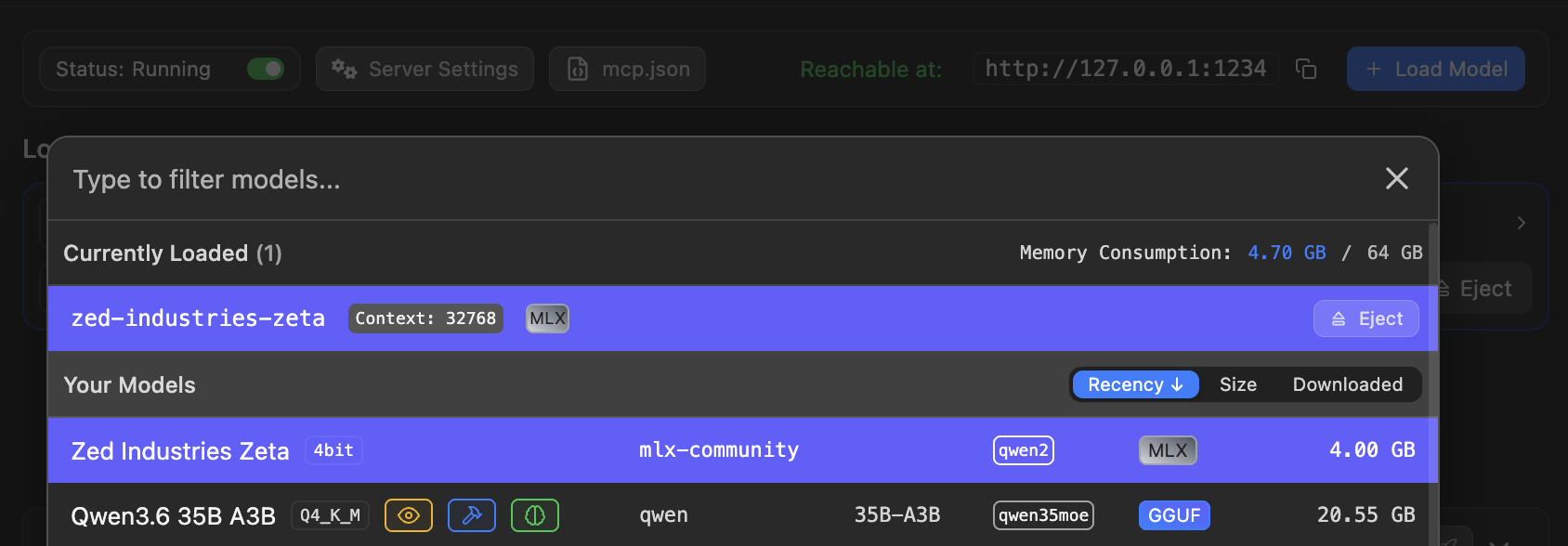
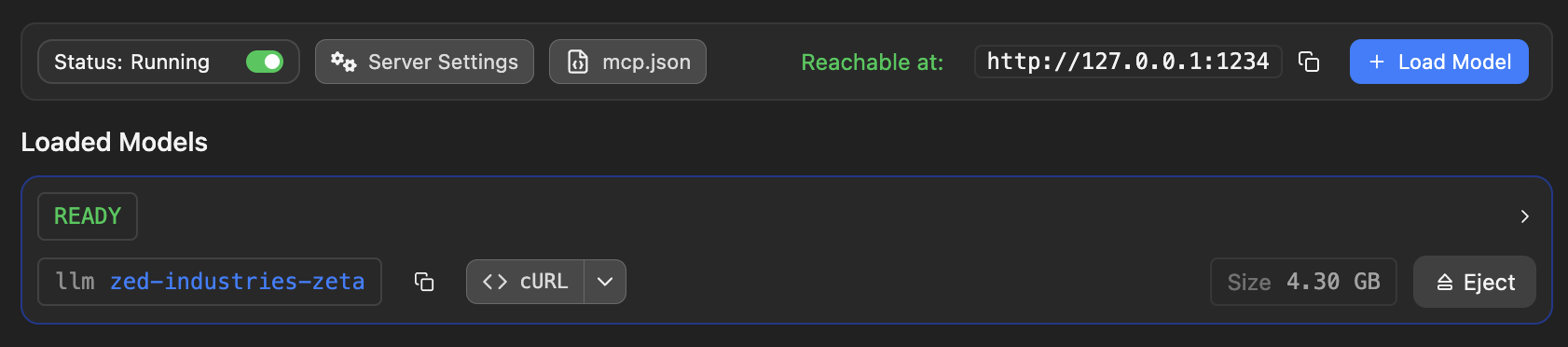
In this case, zed-industries-zeta will be used later.
Set up Edit Predictions
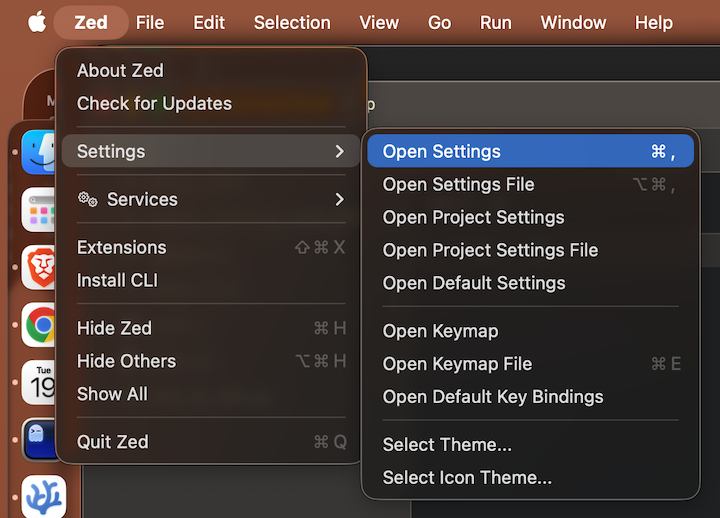
- Open Zed and Go to
Settings.
- Click
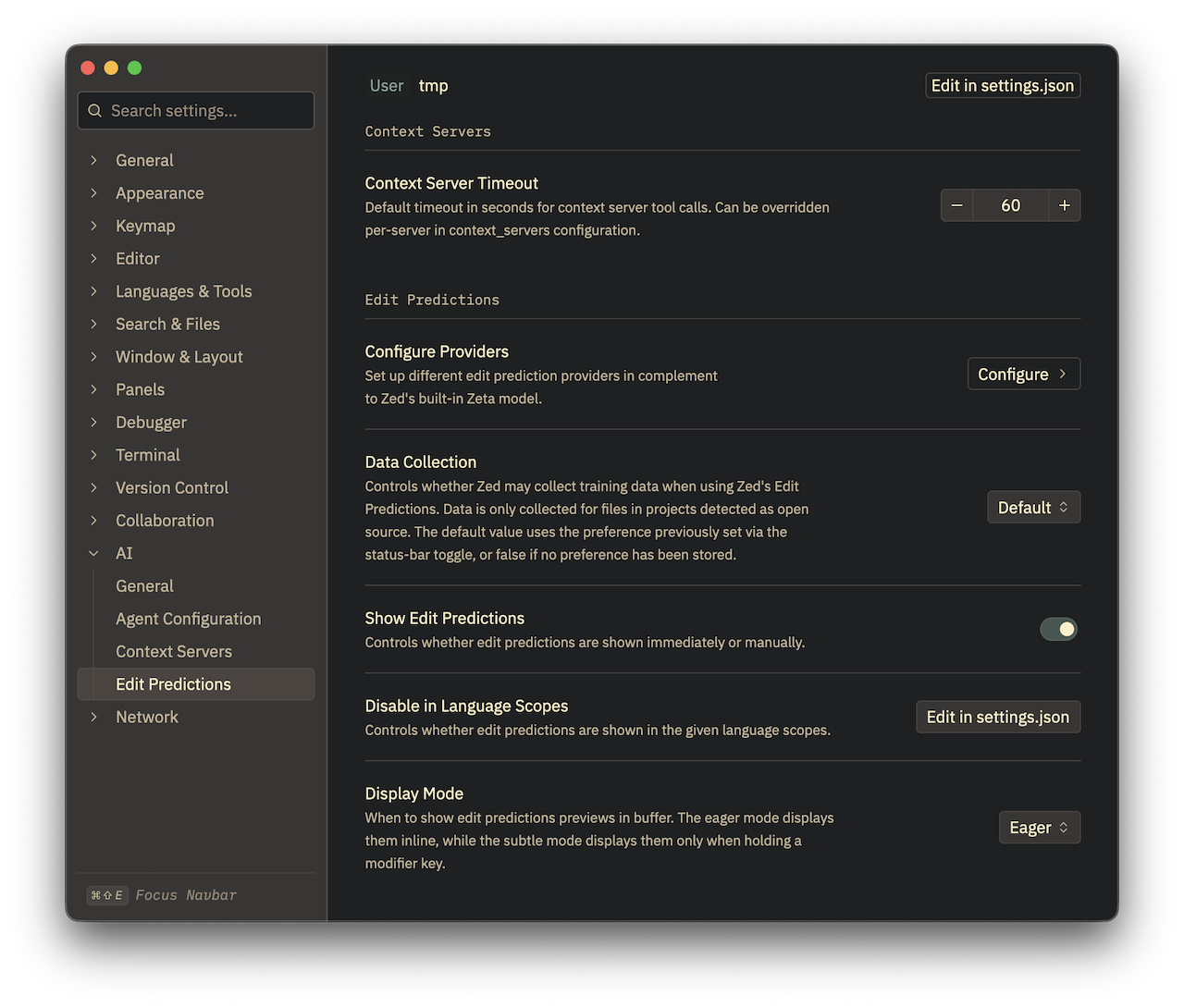
Edit Predictionson the left pane and clickConfigureinConfigure Providers.
- Go to
OpenAI Compatible APIand config as below.
- API URL:
http://localhost:1234/v1/completions - Model:
zed-industries-zeta
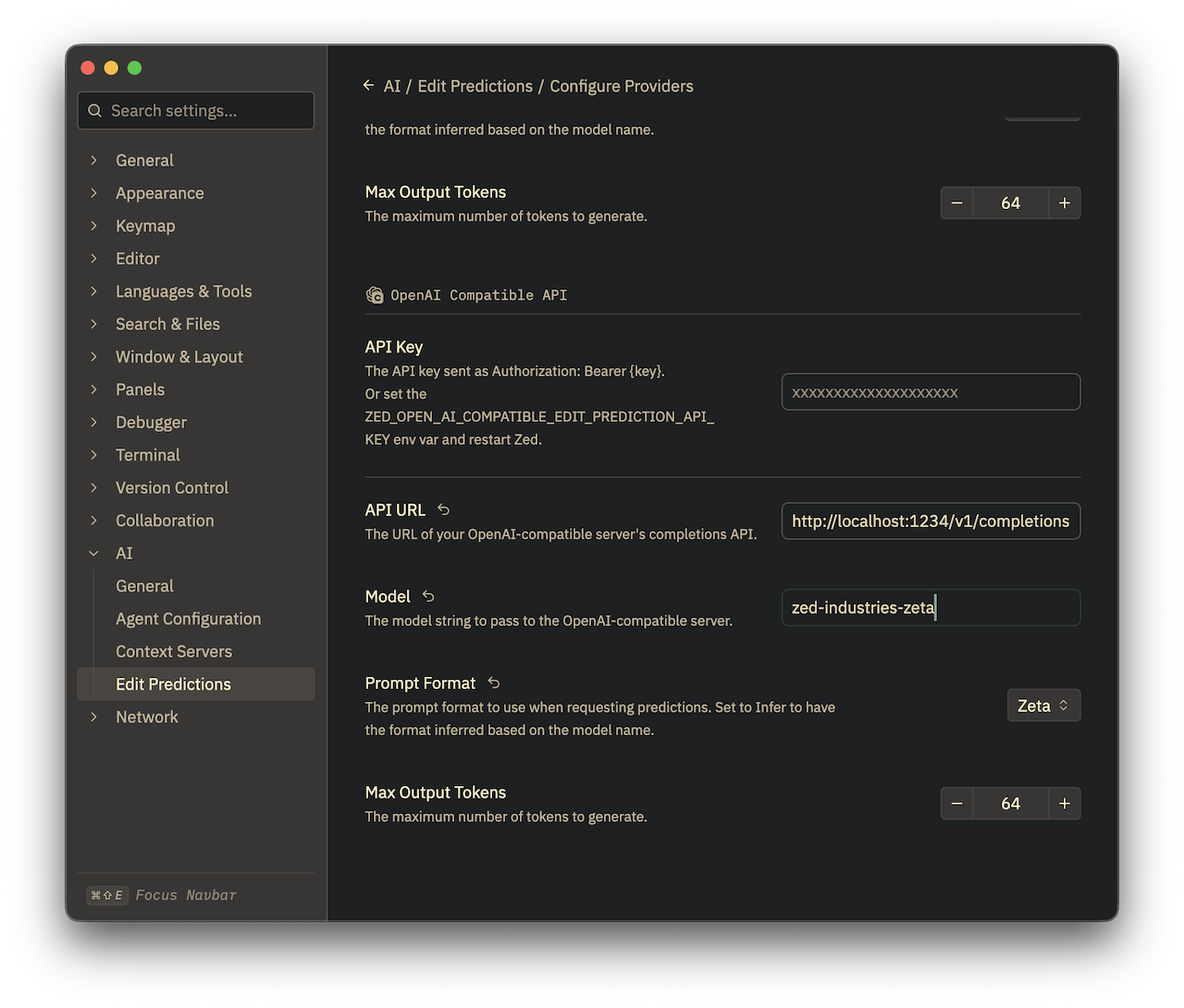
The configuration will be saved automatically. Close the window.
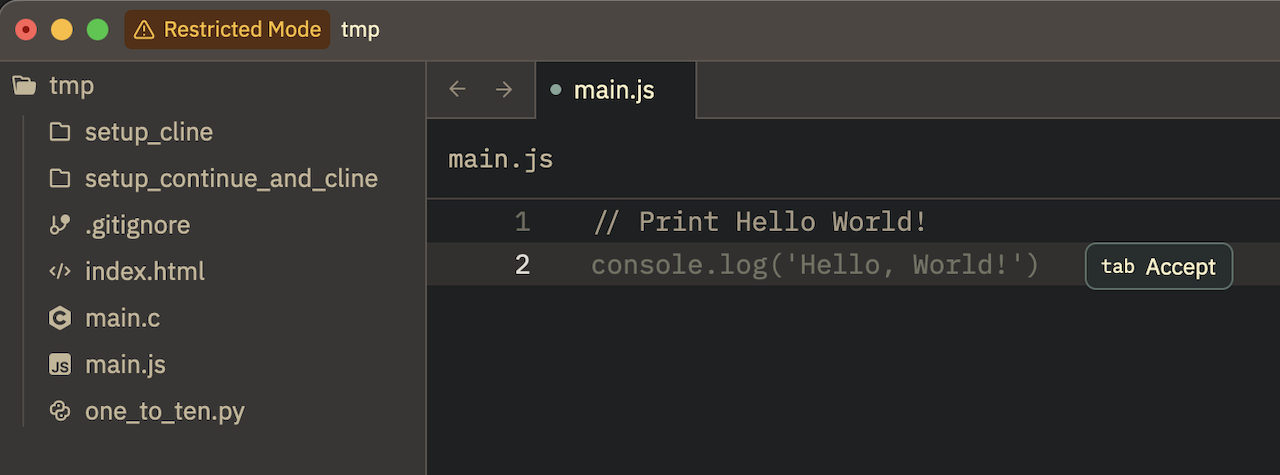
- Test Edit Predictions.